Quick Start Guide
Overview
SheetEngine lets you describe Google Sheets automations in plain English, and an AI agent writes, edits, and deploys code directly to your sheets. Here's how to get started.
Step 1: Sign in with Google
Visit app.sheetengine.app and sign in with your Google account. SheetEngine uses your Google account to access your spreadsheets and deploy automations on your behalf.
Step 2: Enable Google scripting
This is a one-time setup. SheetEngine needs scripting enabled on your Google account.
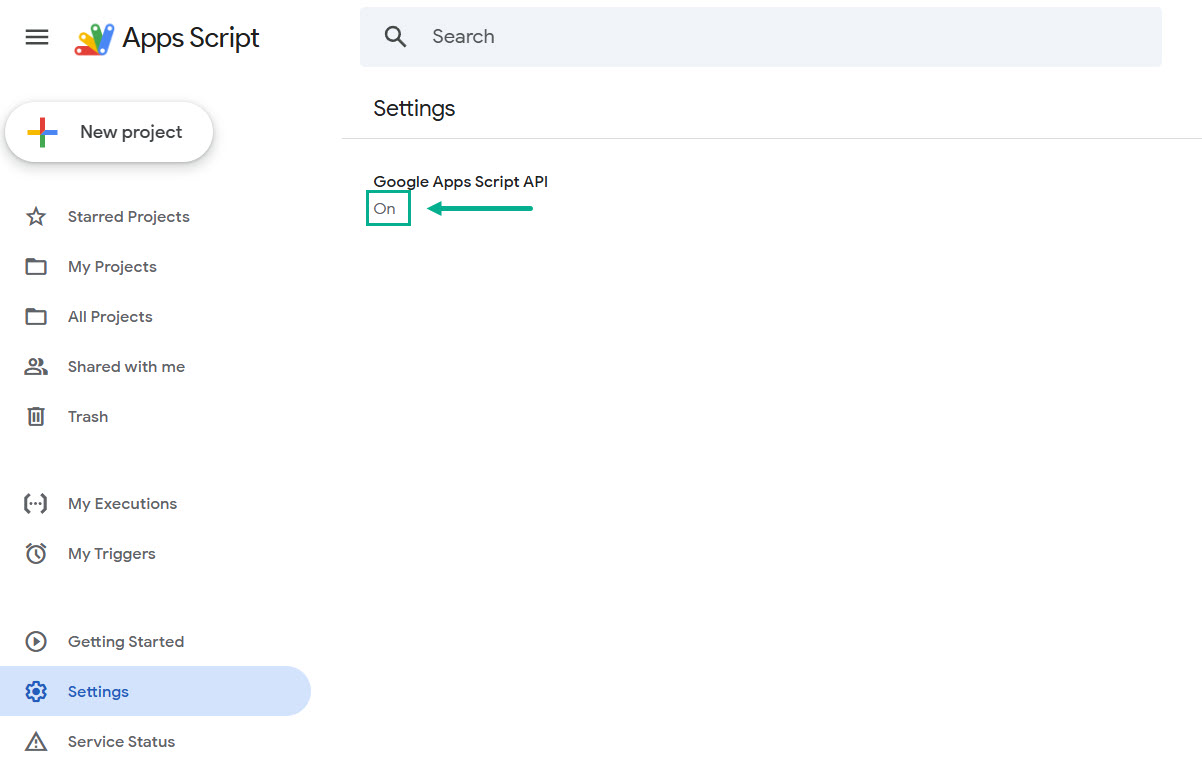
- Go to script.google.com/home/usersettings
- Find the API toggle and switch it On
If it's already on, you're all set.
Note: If you skip this step, SheetEngine won't be able to create or manage scripts for your sheets. You'll see a permission error when trying to create a project.
Step 3: Create a project
After signing in, click New Project on the dashboard. You can either:
- Create a new spreadsheet - SheetEngine creates a fresh Google Sheet for you
- Connect an existing spreadsheet - Pick one of your existing sheets and paste its Apps Script URL
Step 4: Describe what you want
In the workspace chat panel, describe the automation you need in plain English. For example:
"When a new row is added to the Orders sheet, calculate the total price and send a confirmation email to the customer."
The AI agent will analyze your request and propose a plan.
Step 5: Build it
Click the Build This (or Build it) button to have the AI agent write the code. You'll see it appear in the editor in real time.
Step 6: Deploy
Once the code looks good, click Deploy to push it live to your Google Sheet. The automation will be ready to run.
Step 7: Refresh your Google Sheet
After deploying, refresh your Google Sheet in the browser. You'll see a SheetEngine menu appear at the top of the sheet (next to Help). This menu gives you access to most of the features your automation provides, such as running functions, opening sidebars, or triggering workflows.
What's next?
- Learn about the workspace layout
- Understand how credits and billing work
- Explore the AI chat features